LinkedIn Banner Resizer
Make your professional profile stand out. Resize your photos and graphics into the perfect LinkedIn background banner format instantly without losing context or clarity.
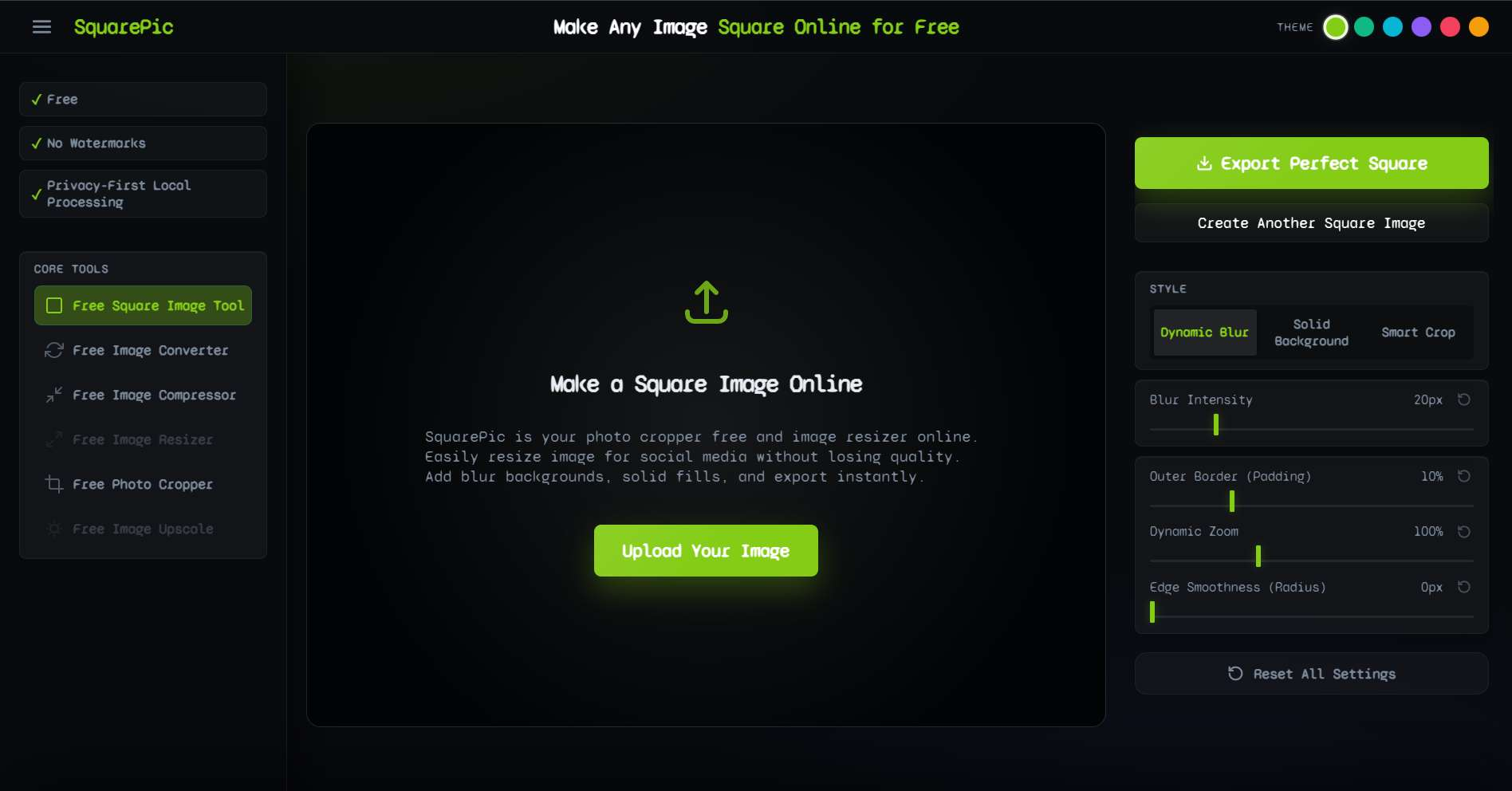
✦ How It Works
Formatting a banner shouldn't involve complex desktop software. Follow these three steps to upgrade your LinkedIn profile.
Step 1
Upload your high-resolution image, company logo, or cityscape photograph into the browser tool.
Step 2
Select a wide aspect ratio and apply a seamless blur or solid color padding to extend the canvas perfectly.
Step 3
Download the final banner and upload it to LinkedIn. It will fit the header frame flawlessly.
✦ Official LinkedIn Image Dimensions
LinkedIn has very specific and unusually wide requirements for their background images. Uploading a standard 16:9 photo often results in the top and bottom being aggressively cropped out. Use this cheat sheet to ensure perfection.
| LinkedIn Asset | Recommended Dimensions | Aspect Ratio |
|---|---|---|
| Personal Background Banner | 1584 x 396 px | 4:1 (Wide) |
| Company Page Cover | 1128 x 191 px | ~5.9:1 (Ultra-Wide) |
| Profile Picture | 400 x 400 px | 1:1 Square |
| Shared Image Post | 1200 x 627 px | ~1.91:1 |
| Article Header Image | 1200 x 644 px | ~1.9:1 |
Our tool allows you to pad your images to match these extremely wide requirements, meaning you never have to crop out your head or your company's logo when setting up your profile header.
✦ Why Use SquarePic for LinkedIn?
Your LinkedIn profile is your professional landing page. A poorly cropped, blurry banner reflects poorly on your personal brand. Here is how our resizer helps you secure the right impression.
- Prevent Unprofessional Cropping If you upload a picture of your team, the built-in LinkedIn cropper will likely cut off heads or important text. Our padding technology extends the canvas horizontally, allowing the entire original photo to be displayed in the center.
- Maintain High Resolution LinkedIn is notorious for compressing images. We export your banner at the highest possible fidelity, ensuring that your text and logos remain crisp and legible even on retina displays and 4K monitors.
- Match Corporate Colors Need your banner to match your company branding? Instead of a blurred background, you can set the padding to a specific hex color code, creating a seamless, branded experience across your entire profile header.
- Instant and Private You shouldn't have to upload corporate assets to sketchy remote servers. SquarePic operates entirely within your browser, ensuring total data privacy for you and your company.
✦ Who Benefits From Banner Formatting?
A properly formatted background image is crucial for networking success.
Job Seekers and Graduates
Stand out to recruiters by replacing the default gray LinkedIn banner with a crisp, properly formatted image representing your industry, portfolio, or a clean professional workspace.
Sales Professionals and Founders
Use the banner space as a billboard. By padding your promotional graphics correctly, you ensure your value proposition, website URL, and contact information are fully visible and not hidden behind your circular profile picture on mobile devices.
Marketing Teams
When launching a new campaign, marketers need employees to update their banners. Use our tool to quickly adapt standard 16:9 campaign assets into the required ultra-wide 4:1 format for team-wide distribution.
✦ Built-In Cropper vs. SquarePic
LinkedIn's built-in image tool is highly restrictive.
- The Built-In Way: Upload your photo. Realize it is too tall. Be forced to drag the box, slicing off 60% of your image. Accept a blurry, compromised banner.
- The SquarePic Way: Upload your photo. Add matching padding to the sides. Export the image in full quality and upload it perfectly on the first try.
✦ Frequently Asked Questions
What is the correct LinkedIn banner size?
The optimal LinkedIn personal background banner size is 1584 x 396 pixels. For LinkedIn Company Pages, the required cover image dimension is slightly different at 1128 x 191 pixels.
Why is my LinkedIn banner blurry?
LinkedIn automatically compresses files over 8MB or images that don't fit the exact aspect ratio. By using our tool to pad your image to the correct dimensions before uploading, you prevent aggressive compression.
How can I make a vertical photo fit as a banner?
Upload your vertical photo to SquarePic, select a wide aspect ratio, and use our blur background option. The tool will place your vertical photo in the center and fill the wide banner edges with a beautiful, cohesive blur.
Do I need to sign up to resize my banner?
No. Our LinkedIn banner resizer is entirely free and does not require you to create an account, log in, or provide any personal information.
Does this tool work for company page covers?
Yes. You can use the custom dimension selector to hit the exact 1128x191 aspect ratio required for corporate pages without cropping your company logo.
✦ Explore Related Tools
Get the rest of your professional assets in order with our suite of free utilities.
Upgrade Your LinkedIn Profile Now
Stop settling for badly cropped headers. Upload your image and format a stunning professional banner in seconds.
Start Free