YouTube Thumbnail Resizer
Get more clicks by ditching ugly black bars. Use our free YouTube thumbnail resizer to convert vertical photos and square graphics into perfect 16:9 widescreen thumbnails instantly.
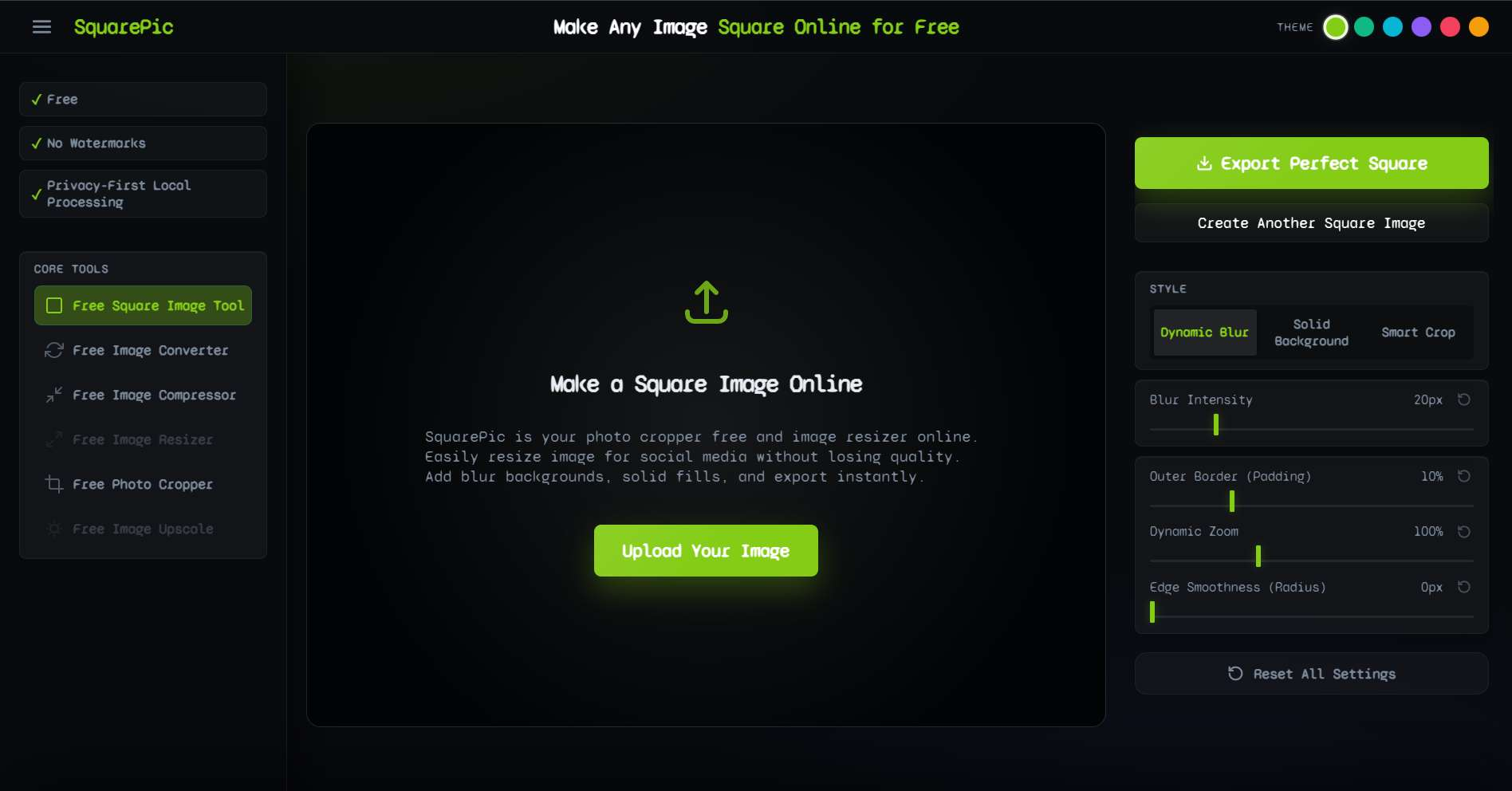
✦ How It Works
You already spent hours editing your video. Creating a properly formatted thumbnail should take seconds. Here is how it is done.
Step 1
Upload your source image, whether it is a square graphic, a vertical photo, or a raw screenshot.
Step 2
Select the 16:9 aspect ratio and choose our smart blur effect to fill the empty background space.
Step 3
Download your perfect YouTube thumbnail and upload it straight to YouTube Studio.
✦ YouTube Creator Dimensions Guide
YouTube is incredibly strict about file requirements. If your thumbnail is off by a few pixels, the platform will automatically add unappealing black bars to the edges to compensate. Use our tool to hit these exact specifications.
| Asset Type | Aspect Ratio | Optimal Resolution |
|---|---|---|
| Standard Thumbnail | 16:9 | 1280 x 720 px |
| Shorts Thumbnail | 9:16 | 1080 x 1920 px |
| Channel Banner (TV) | 16:9 | 2560 x 1440 px |
| Channel Profile Picture | 1:1 | 800 x 800 px |
| Video Watermark | 1:1 | 150 x 150 px |
SquarePic is the ideal companion for creators, allowing you to format all of your channel assets efficiently in one place.
✦ Why Use Our Thumbnail Resizer?
Click-through rate (CTR) is the most critical metric for YouTube success. If your thumbnail looks amateurish due to poor formatting or black bars, viewers will simply scroll past your content. Here is how we help you win the click.
- Eliminate Black Bars Automatically When uploading non-16:9 images, YouTube inserts black bars (letterboxing) to fill the void. Our tool replaces those dead zones with a beautiful, dynamic blur that extends the colors of your image outward, making the thumbnail look intentional and highly produced.
- Maintain Peak Sharpness The YouTube homepage is highly competitive. We process your images locally to ensure zero compression loss. Your face, text, and focal subjects remain razor-sharp to grab attention.
- No Login, No Delays You do not have time to jump through hoops when a video is rendering. You don't need to create an account or verify your email. The tool is instantly ready whenever you are.
- No Watermarks A watermark over your thumbnail destroys your credibility. We offer a 100% clean export, ensuring your brand is the only thing viewers see.
- Browser-Based Speed Forget heavy software like Photoshop that takes minutes to load. SquarePic runs in your browser and is optimized for speed, generating your final thumbnail instantly.
✦ Perfect For Every Type of Creator
Different niches require different types of thumbnails, but the formatting rules apply to everyone. Here is who benefits the most:
Vloggers and Lifestyle Creators
Vloggers often grab thumbnails directly from their vertical smartphone photos or Instagram stories. Our resizer converts those 9:16 vertical snaps into gorgeous 16:9 cinematic thumbnails by applying the perfect ambient blur to the sides.
Podcasters and Interviewers
Podcasts frequently use square artwork (1:1) for Spotify and Apple Podcasts. When uploading video versions to YouTube, they need a widescreen thumbnail. Instead of stretching the square logo, SquarePic pads the edges elegantly.
Gamers and Streamers
If you play retro games or stream in non-standard resolutions (like 4:3), screenshots will not fit YouTube correctly. Our padding tool ensures your gameplay screenshots fill the thumbnail space without being artificially stretched.
✦ SquarePic vs. Traditional Photo Editors
Why not just use Photoshop or Canva to resize your thumbnails? While those are fantastic tools for complex compositing, they are overkill for simple formatting tasks.
- The Old Way: Open software, create a new 1280x720 canvas, import your photo, duplicate the layer, scale the bottom layer up, apply a Gaussian blur filter, and export.
- The SquarePic Way: Upload photo, click 16:9. Done.
- The Verdict: Save your heavy editors for text and graphics. Use SquarePic to format the base image in seconds.
✦ Frequently Asked Questions
How do I fix the black bars on my YouTube thumbnail?
Black bars appear when your image is not in the exact 16:9 aspect ratio. You can fix this using our YouTube thumbnail resizer, which automatically replaces those ugly black bars with a professional blurred background or solid color.
What is the correct YouTube thumbnail size?
The optimal YouTube thumbnail size is 1280 x 720 pixels, with a minimum width of 640 pixels. It must maintain a 16:9 aspect ratio to look perfect across desktop and mobile devices.
Can I use a vertical photo for a YouTube thumbnail?
Yes. Our tool allows you to upload a vertical smartphone photo and pads the empty sides with a beautiful, seamless blur effect, turning it into a clickable, wide 16:9 thumbnail.
Is there a limit on how many thumbnails I can resize?
No limits at all. Our tool is completely free for unlimited use. You can process as many thumbnails as you need for your channel.
Will the tool compress my thumbnail and make it blurry?
No. The processing happens locally on your device, ensuring maximum resolution retention. Your subject will stay sharp, while only the background padding is blurred.
✦ Explore Related Tools
Creators use multiple platforms. Ensure all your assets are perfectly sized with our other free utilities.
Fix Your YouTube Thumbnail Now
Increase your CTR by formatting your images perfectly. Upload your photo and remove those black bars for good.
Start Free